ELK alerts for Discord via reverse webhook Proxy
Problem
So you have to send alerts to discord when an event is triggered like a host's disk usage is above 80%. The problem is that ELK does not natively integrate discord webhooks.
Solution
You can follow the mentioned procedure to integrate discord webhooks with ELK
Creating an Elastic Discord Webhook Proxy
Since Discord Webhooks do not have native integration with Kibana, hence I set up a reverse proxy server that accepts alerts from Kibana and forwards them to Discord via its hook.
- On a separate server, clone the Github Repo
- Copy the
config.ex.jsonfile to your current directory asconfig.json - Update the WebhookURL field with a Discord webhook URL
- I edited the
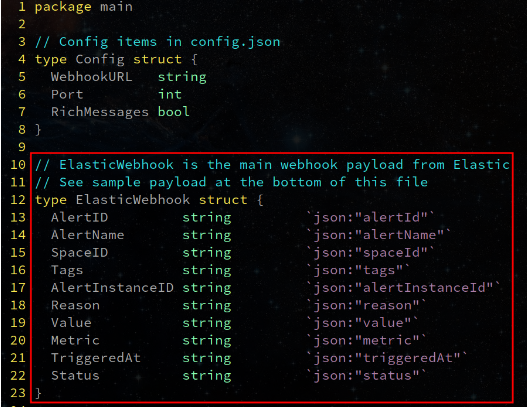
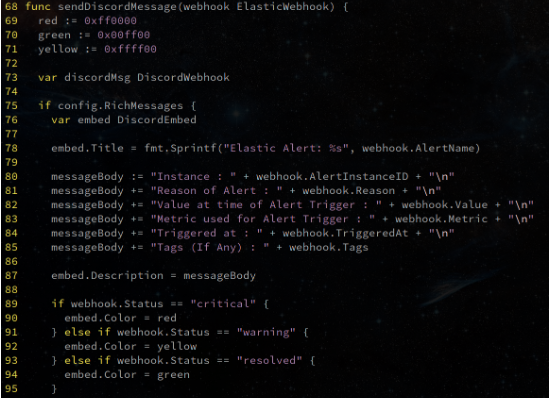
types.gofile according to the requirements of the alert - Similarly, i edited main.go file to include custom messages and formatting
- Then i compiled the files into a binary using command
go build main.go tools.go
- Finally, i created a system startup script for the reverse proxy server to start on bootup (Reference)
- Since this was hosted on a local server and Kibana was managed by GCP, we forwarded the port 8080 to external port 8088
Creating a Connector in Kibana
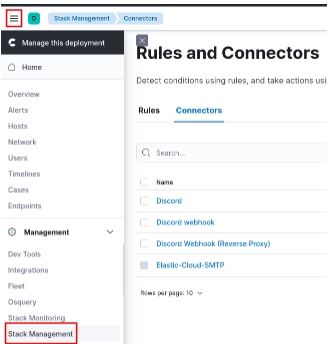
- On Kibana Dashboard, navigate to Stack Management => Connectors
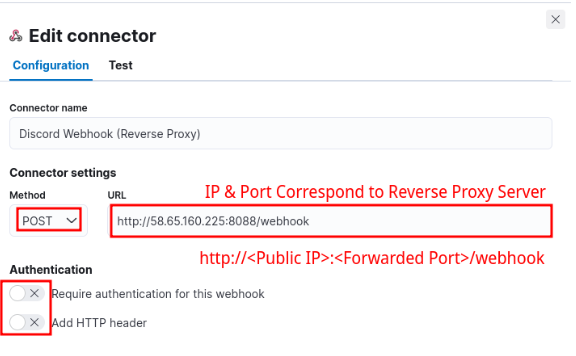
- Add a new connector with its configuration as follows
Creating a Rule in Kibana
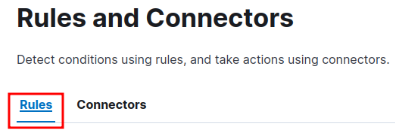
After creating the connector, head over to the rules tab
Next, create a new rule with its configuration as follows
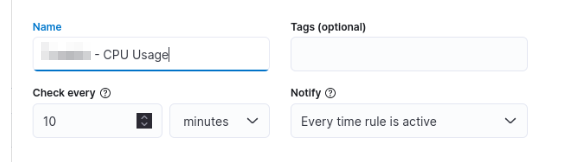
- Give the Rule a Name like in the example is for CPU Usage
- “Check every” field means that this rule will be checked every 10 minutes
- “Notify” field means the alert notification will be sent each time the rule’s condition is triggered
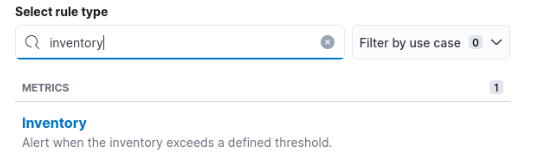
- Choose the rule type as inventory since we are applying the rule on the host machines which are present in the inventory
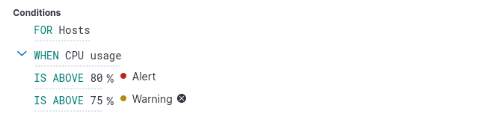
- Choose Hosts as For
- Choose the Metric you want to measure in WHEN
- Add Alert & Warning (Optional) Condition in
IS ___Section

- Next, we will add 3 connectors i.e the Connector that we created earlier, choose Webhook in connector type
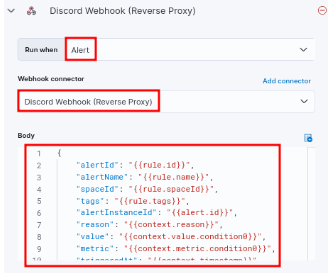
- This is First Connector
- Its body contains the following rules
{
 "alertId": "{{rule.id}}",
 "alertName": "{{rule.name}}",
 "spaceId": "{{rule.spaceId}}",
 "tags": "{{rule.tags}}",
 "alertInstanceId": "{{alert.id}}",
 "reason": "{{context.reason}}",
 "value": "{{context.value.condition0}}",
 "metric": "{{context.metric.condition0}}",
 "triggeredAt": "{{context.timestamp}}",
 "status": "critical"
}
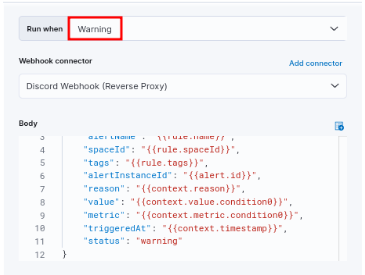
- This is Second Connector
- Its body contains the following rules
{
 "alertId": "{{rule.id}}",
 "alertName": "{{rule.name}}",
 "spaceId": "{{rule.spaceId}}",
 "tags": "{{rule.tags}}",
 "alertInstanceId": "{{alert.id}}",
 "reason": "{{context.reason}}",
 "value": "{{context.value.condition0}}",
 "metric": "{{context.metric.condition0}}",
 "triggeredAt": "{{context.timestamp}}",
 "status": "warning"
}
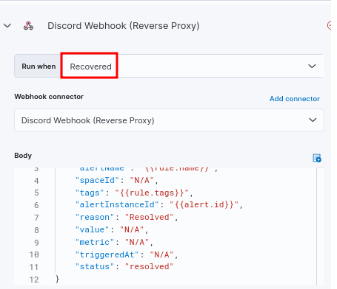
- This is Third Connector
- Its body contains the following rules
{
 "alertId": "N/A",
 "alertName": "{{rule.name}}",
 "spaceId": "N/A",
 "tags": "{{rule.tags}}",
 "alertInstanceId": "{{alert.id}}",
 "reason": "Resolved",
 "value": "N/A",
 "metric": "N/A",
 "triggeredAt": "N/A",
 "status": "resolved"
}
Finally save the rule and it will be active, you will start receiving trigger alerts of different types on the Discord channel.